

A handheld scanner can turn a physical component, miniature or keepsake into a model through the Creality Pika 3D Scanner, which can form the start of a digital workflow. The key question is whether the Creality Pika fits the objects and workflow you have in mind.
We reviewed the product information on 3D Prima Technology and the Pika listing to understand what the device offers on paper. The Creality Pika listing describes a handheld unit. Its blue laser and near-infrared modes offer different ways to capture objects, so its fit depends on your target and how you plan to process the result. Start with the Creality Pika listing for the current specifications and availability.
This review focuses on the Creality Pika 3D Scanner, its modes, workflow and buying considerations.
This article contains affiliate links. If you buy through them, we may earn a commission at no extra cost to you.
Before you read on
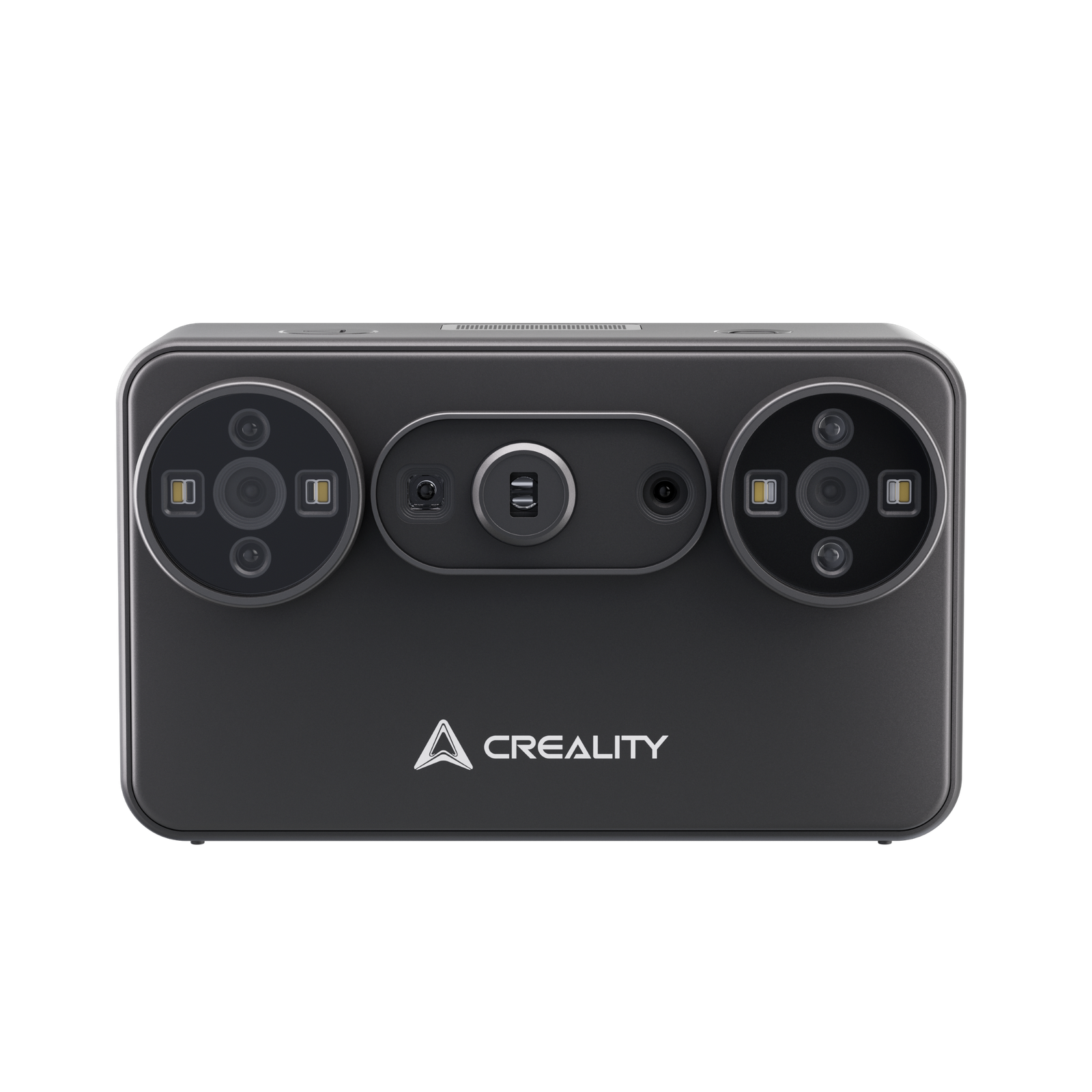
- The Creality Pika pairs seven parallel blue laser lines with NIR structured light in one handheld device.
- Blue laser mode is intended for fine details and complex contours; NIR is aimed at larger objects and body scanning.
- The listing states accuracy up to 0.03 mm in blue laser mode under laboratory conditions, so treat that as a maximum stated figure.
- PC and mobile performance differ, and marker-free laser scanning is limited to wired PC mode.
- The Pika scans data for digital work; printing the result requires a separate workflow and compatible equipment.
What makes the Creality Pika distinctive?
The main appeal is the dual-light design. The store describes seven parallel blue laser lines for detailed capture of small objects and intricate contours, alongside NIR structured light for larger objects and full-colour body scanning. That makes the Creality Pika 3D Scanner worth considering if your projects vary from small mechanical parts to larger forms.
The Pika scanner published maximum accuracy reaches 0.03 mm in blue laser mode under laboratory conditions, while the stated NIR figure is up to 0.1 mm under those conditions. These are manufacturer figures, not guaranteed results; surface, movement, lighting, alignment and processing affect capture.
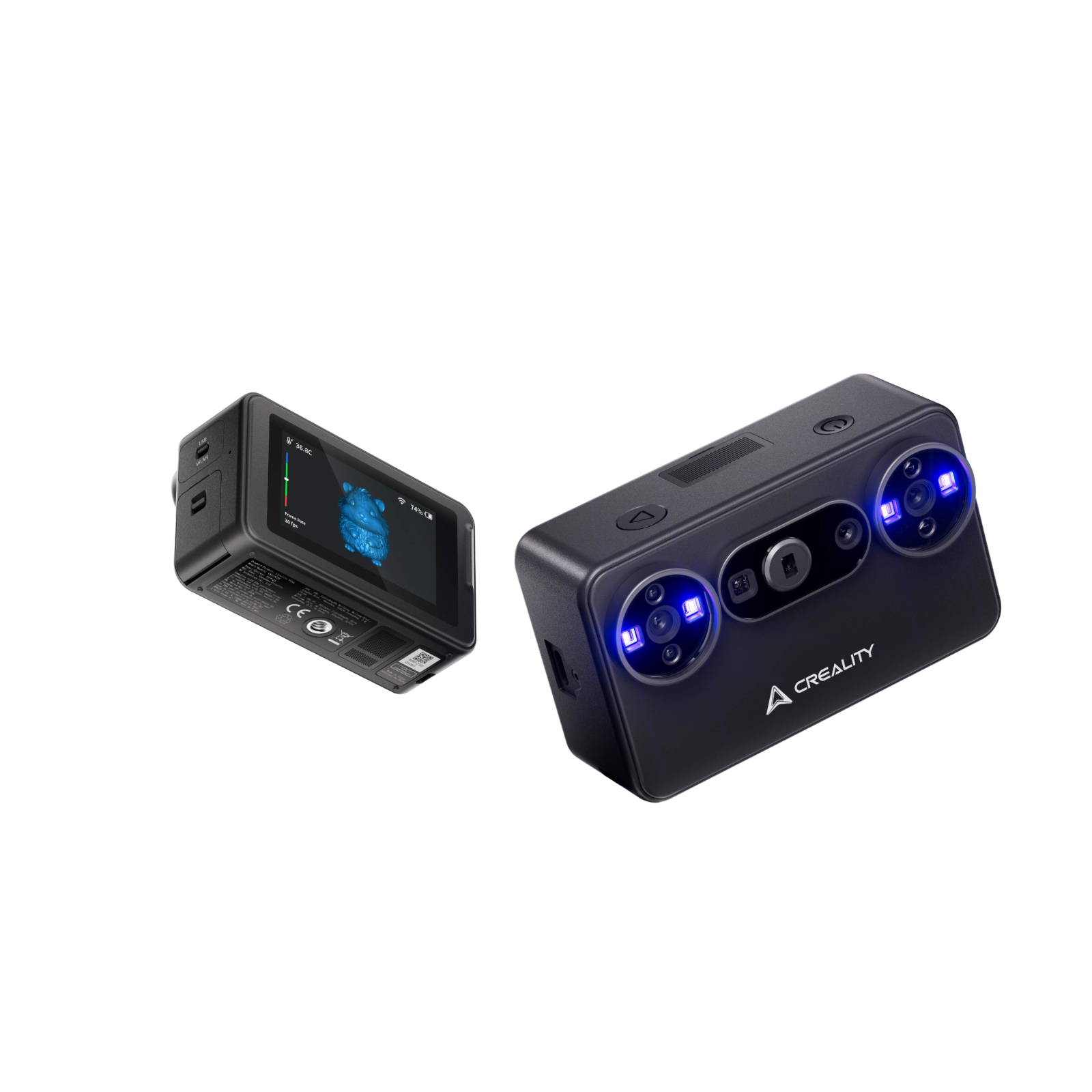
For details, see the Creality Pika technical listing. The store lists blue laser speeds up to 110 frames per second on a compatible PC and 40 on mobile; NIR reaches up to 30 on PC and 20 on mobile. The PC figures do not describe a phone-based workflow.
Which objects and workflows suit its two modes?
For small objects with fine geometry, blue laser on the Pika scanner is the more relevant starting point; the listing names models, components and figurines. Its minimum scan volume is 10 × 10 × 10 mm in blue laser mode, compared with 50 × 50 × 50 mm in NIR. These figures frame the range, but cannot predict how easily a specific object will scan.
- Small detailed parts: consider blue laser mode for finer contours and smaller scan volumes.
- Larger objects: NIR offers a broader capture range and a longer stated working distance.
- People and colour: the store positions NIR for body scanning and 24-bit full-colour capture.
- Black or metallic surfaces: the listing says the Pika can capture these without scanning spray.
Choosing the mode, distance and alignment adds some setup. Blue laser offers marker, global-marker and marker-free alignment, but marker-free scanning is wired PC only. That connection requirement matters if avoiding markers is essential.
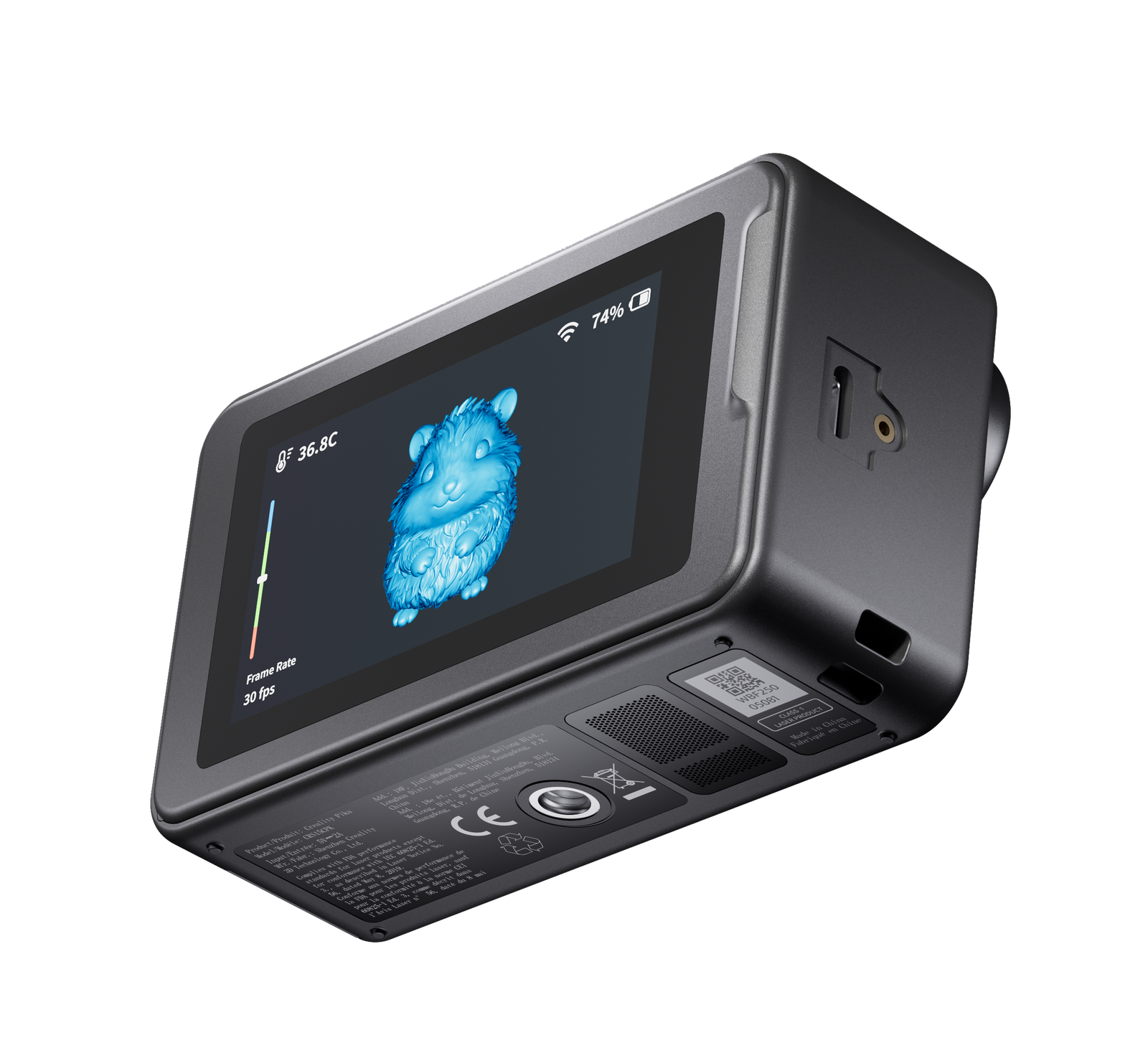
The advertised working distances also vary by mode: 160-400 mm for blue laser and 200-1,000 mm for NIR. Choose a distance suited to the capture mode rather than assuming one position works for every target.
How does capture turn into a usable model?
The Creality Pika has a built-in 3-inch HD touchscreen for adjusting settings, checking status and viewing a model during capture. The store describes three connection choices: wireless PC, wireless mobile and wired PC over USB 3.0. The last mode is particularly relevant if you need marker-free laser scanning, while mobile capture trades some of the listed speed for portability.
CrealityScan software is part of the workflow. The Pika product information names AI-assisted retexturing, hole filling and body completion tools, and says these AI features are available on PC. Verify current software versions and availability before ordering. Completed scans can be exported in STL, OBJ, PLY and ASC formats. Check that your preferred downstream software supports the format and scan workflow before choosing the device.
- Choose blue laser or NIR based on object size and the level of detail you need.
- Confirm the device connection and computer or mobile compatibility before starting.
- Capture the object, inspect the scan and use the software tools where they fit the data.
- Export in a format supported by the next application in your workflow.
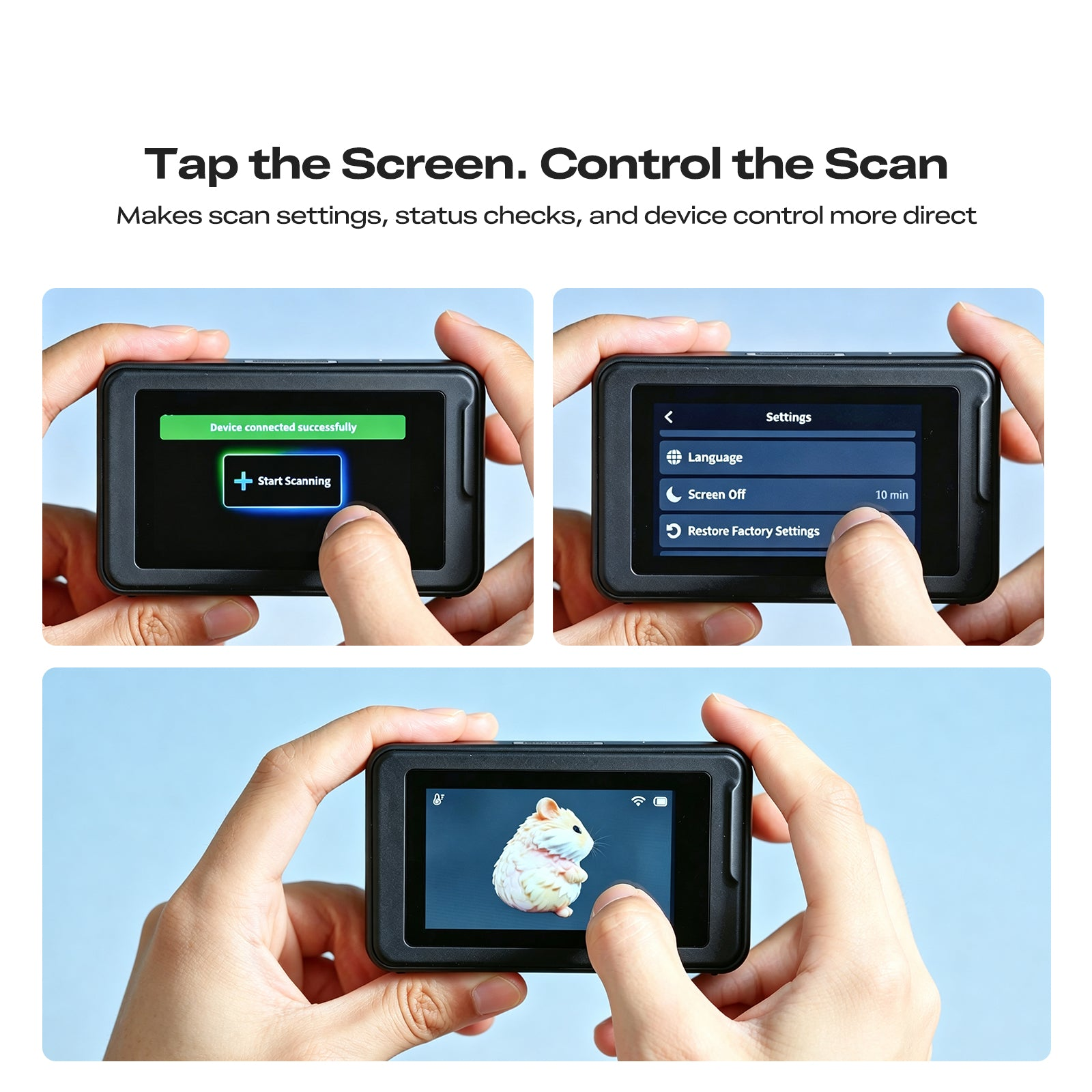
This suits makers who can move between hardware and software. It is less suitable if you expect a phone scan with no cleanup or a print-ready mesh every time.
What should buyers check on the UK listing?
Start with your target objects and compare their size and surface with the Pika scanner mode ranges. Decide whether you need blue laser, NIR or both; laboratory accuracy figures are not guaranteed real-world results.
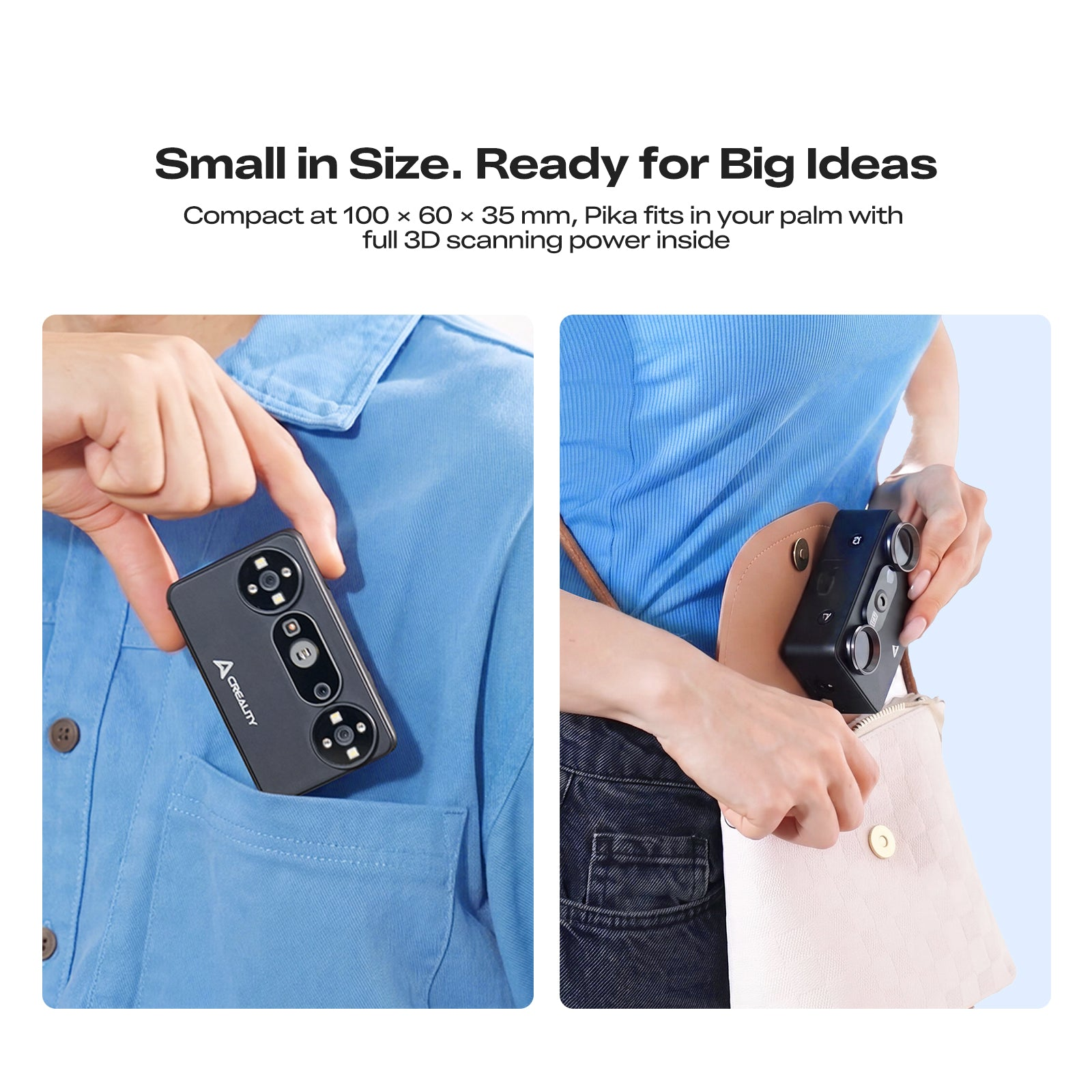
Check your computer or mobile device next. The product page lists Windows, macOS, Android and iOS support, but features differ by platform. Confirm software requirements, wired needs and PC-only AI tools before ordering.
- Match the chosen scanning mode to the object size and detail.
- Check supported operating systems and your planned wired or wireless connection.
- Confirm which functions need a PC, especially marker-free capture and AI processing.
- Read the UK listing for current availability, delivery, returns and warranty terms.
The Creality Pika listing sets out feature descriptions and specifications. Check the current UK product page for availability and price, then review UK delivery, returns and warranty terms.
What are the Pika’s strengths, limits and best fit?
- Strengths: dual blue-laser and NIR modes, a built-in touchscreen, PC and mobile connections, and listed export formats.
- Limits: speed and accuracy depend on mode and conditions; marker-free scanning and listed AI tools rely on PC features, and output may need cleanup.
- Best fit: makers scanning components, figurines or larger forms who can choose modes and process exports. It is less suitable for a fully wireless, ready-to-use result.
As a practical buying check, allow time to inspect scans and plan for possible cleanup before using them in another application.
Questions buyers often ask
Can the Creality Pika scan without markers?
The store says marker-free blue laser scanning is available in wired PC mode only. If that feature matters, check the computer connection and the latest CrealityScan instructions before choosing a setup.
Does it work with a phone?
The listing describes wireless mobile mode and support for Android and iOS. The Creality Pika listing also gives lower maximum frame rates on mobile than on a compatible PC, so confirm your device and intended mode against the current product information.
Is the Pika a 3D printer?
No. The Pika captures object data; a separate printer and compatible filament are needed to produce a physical part. 3D Prima Technology lists the Creality Hi Combo 3D printer and PrimaValue PLA+ filament as examples of that next step. Check printer and material compatibility for your project.
Which makers are best suited to the Pika?
- Best fit: makers scanning components, figurines or larger forms who can choose modes and process data in compatible software.
- Less suitable: buyers who need a fully wireless scan-to-ready-model process or do not want to check PC-dependent features.
Our recommendation
We recommend shortlisting the Creality Pika 3D Scanner when its published modes suit your objects and you are prepared to work with mode-specific setup. Its limitation is that some features depend on a wired or PC workflow.
Check the current listing, software requirements and UK store terms against your setup before deciding.